
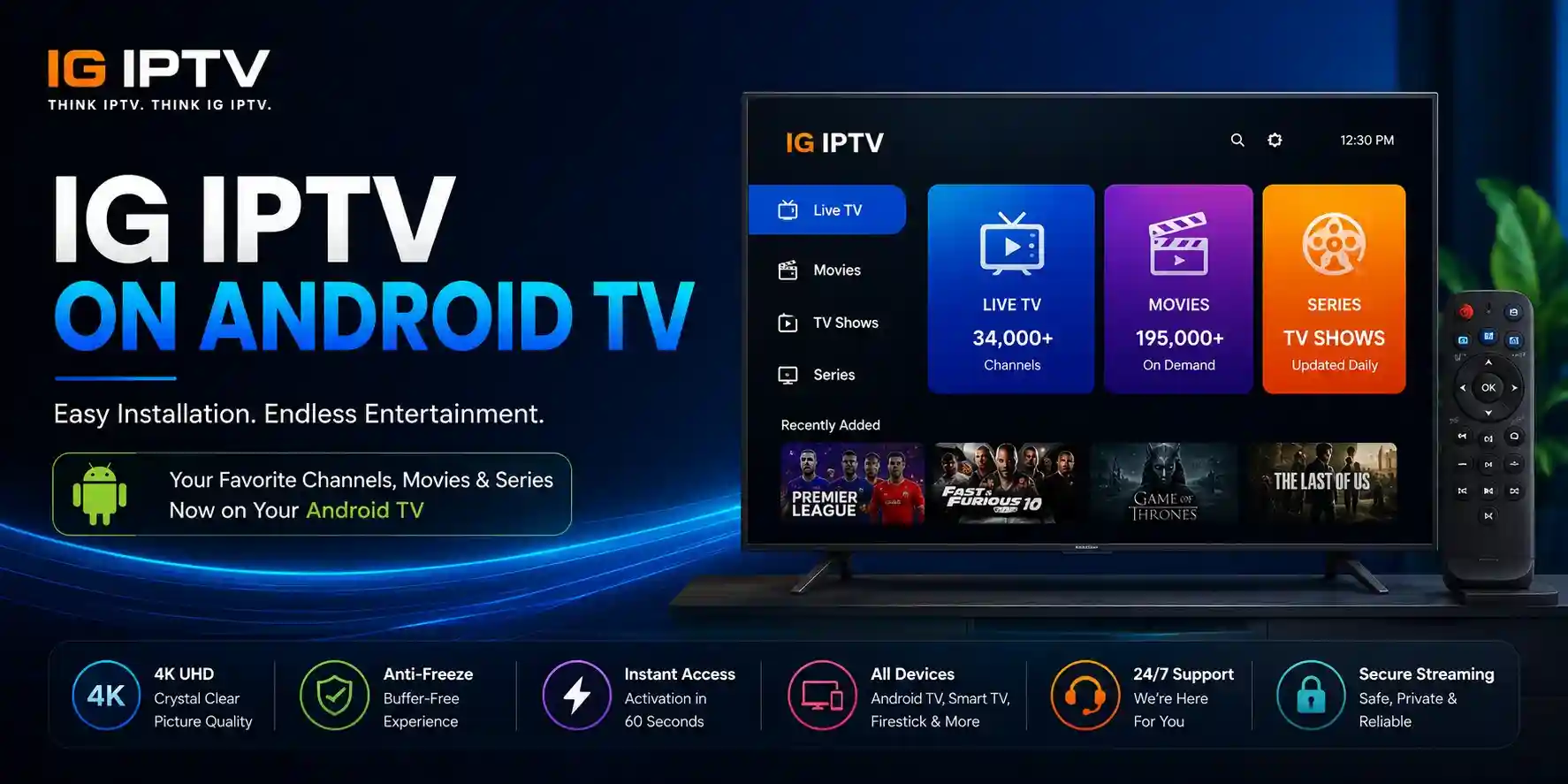
Watching live TV, sports, movies, and on-demand entertainment becomes much easier when you install IG IPTV on your Android TV. Whether you own a Sony, TCL, Philips, Hisense, Xiaomi, or any Android TV running Google TV, the setup process is quick and beginner-friendly.
Unlike traditional cable services, IG IPTV lets you enjoy thousands of live channels and a huge on-demand library from a single subscription. Once your account is activated, all you need is a compatible IPTV player, your login details, and a stable internet connection.
In this guide, you’ll learn how to install IG IPTV on Android TV step by step. We’ll also show you how to log in using IPTV Smarters Pro or TiviMate, optimize your streaming settings, and fix the most common setup issues.
Whether this is your first IPTV installation or you’re switching from another provider, this guide will help you get started in just a few minutes.
Why Choose IG IPTV on Android TV?
Android TV is one of the most popular streaming platforms because it supports a wide range of IPTV applications. When combined with IG IPTV, it provides a smooth and flexible entertainment experience without complicated installation.
Some of the key benefits include:
- Access to thousands of live TV channels.
- Huge collection of movies and TV series.
- HD, Full HD, and 4K streaming support.
- Fast channel switching.
- Easy setup in just a few minutes.
- Works with the most popular IPTV players.
- Simple user interface for beginners.
- Regular content updates.
- Compatible with Google TV and Android TV devices.
Because Android TV supports apps directly from the Google Play Store, there is no need for complicated installation methods in most cases.
What You Need Before Installation
Before installing IG IPTV on Android TV, make sure you have everything ready.
Active IG IPTV Subscription
You’ll need an active subscription. After purchasing, you’ll receive your IPTV login details by email or WhatsApp.
These usually include:
- Xtream Codes Login
- Username
- Password
- Server URL
Stable Internet Connection
For the best experience, use:
- Minimum 25 Mbps for HD streaming.
- 50 Mbps or higher for 4K content.
- Wired Ethernet connection if available.
Compatible IPTV Player
Android TV supports several IPTV applications, including:
- IPTV Smarters Pro
- TiviMate
- XCIPTV Player
Each player works well with IG IPTV, so you can choose the one you prefer.
Compatible Android TV Devices
IG IPTV works with most Android TV and Google TV devices, including:
- Sony Android TV
- TCL Android TV
- Hisense Android TV
- Philips Android TV
- Xiaomi Mi TV
- Chromecast with Google TV
- Nvidia Shield TV
- Mecool Android TV Boxes
- Nokia Streaming Box
- Realme Google TV
- Any Android TV running Android 9 or newer
If your TV supports Android TV or Google TV, you can install an IPTV player directly from the Play Store and start streaming within minutes.
Method 1 – Install IPTV Smarters Pro on Android TV
IPTV Smarters Pro is one of the easiest and most popular apps for streaming IPTV content on Android TV. It offers a clean interface, supports Xtream Codes login, and works smoothly with IG IPTV.
Step 1: Open Google Play Store
Turn on your Android TV and launch the Google Play Store from the home screen.
Step 2: Search for IPTV Smarters Pro
Use the search bar and type:
IPTV Smarters Pro
Select the app from the search results.
Step 3: Install the App
Click Install and wait for the download to finish. Once the installation is complete, open the application.
Step 4: Accept the Terms
When the app launches for the first time, accept the terms and continue to the login screen.
Step 5: Choose Xtream Codes Login
Select Login with Xtream Codes API, then enter the login details provided with your IG IPTV subscription:
- Any Playlist Name (e.g., IG IPTV)
- Username
- Password
- Server URL
After entering the details, tap Add User.
Step 6: Start Streaming
The app will automatically load your live TV channels, movies, and TV series. Once the content finishes loading, you’re ready to start watching.
Method 2 – Install TiviMate on Android TV
TiviMate is one of the best IPTV players available for Android TV. It offers a modern interface, smooth navigation, Electronic Program Guide (EPG) support, and advanced playback options. If you want a premium viewing experience, TiviMate is an excellent choice for streaming with IG IPTV.
Step 1: Open Google Play Store
Turn on your Android TV and open the Google Play Store from the home screen.
Step 2: Search for TiviMate
In the search bar, type TiviMate IPTV Player and select the official application from the results.
Step 3: Install the Application
Click Install and wait for the download to complete. Once installed, launch the app.
Step 4: Add a New Playlist
When TiviMate opens for the first time, choose Add Playlist.
Step 5: Select Xtream Codes Login
Choose Xtream Codes Login as your playlist type.
Step 6: Enter Your IG IPTV Details
Fill in the login information provided after purchasing your subscription.
- Playlist Name
- Username
- Password
- Server URL
Double-check the information before continuing.
Step 7: Complete the Setup
Click Next and allow TiviMate to download your channels, movies, and TV series.
Within a few moments, your complete IPTV library will appear and you’ll be ready to start streaming.
Method 3 – Install XCIPTV on Android TV
XCIPTV is another popular IPTV application that works perfectly with IG IPTV. It provides an attractive interface, built-in media player, EPG support, catch-up features, and a fast navigation system.
Step 1: Open Google Play Store
Launch the Google Play Store on your Android TV.
Step 2: Search for XCIPTV
Search for XCIPTV Player.
Step 3: Install the App
Select the official application and press Install.
Step 4: Open XCIPTV
After installation, launch the application.
Step 5: Login Using Xtream Codes API
Choose Xtream Codes API and enter your subscription details.
You’ll need:
- Username
- Password
- Server URL
Step 6: Save Your Details
Click Login.
The application will automatically synchronize your subscription and load all available content.
Once completed, you can start watching Live TV, Movies, TV Shows, and Catch-Up content.
Best Streaming Settings for Android TV
For the best viewing experience, we recommend adjusting a few settings after installing IG IPTV.
Use a Stable Internet Connection
A reliable internet connection is essential for smooth streaming.
- HD Streaming: 25 Mbps minimum
- 4K Streaming: 50 Mbps or higher
- Wired Ethernet is recommended whenever possible.
Keep Your IPTV App Updated
Always use the latest version of your IPTV player to improve performance, stability, and compatibility.
Enable Hardware Acceleration
Most IPTV players include a Hardware Acceleration option.
Turning it on can improve playback performance and reduce buffering on supported Android TVs.
Select the Correct Video Player
If your IPTV player lets you choose between different video players, test the available options to find the smoothest playback on your device.
Restart Your Device Regularly
Restarting your Android TV occasionally clears temporary memory and helps maintain stable performance during long streaming sessions.
Common Problems and Solutions
IG IPTV Is Not Loading
Check that your Username, Password, and Server URL are entered correctly.
Also confirm that your subscription is still active.
Buffering During Playback
Buffering is usually caused by:
- Slow internet speed
- Wi-Fi signal issues
- High network traffic
- Temporary server congestion
Using an Ethernet connection often improves stability.
Login Failed
If login fails:
- Verify your credentials.
- Remove any extra spaces.
- Re-enter the Server URL exactly as provided.
- Restart the application.
App Crashes Frequently
Update the application to the latest version.
If the problem continues:
- Clear the app cache.
- Restart Android TV.
- Reinstall the application.
No Channels or Movies Showing
Sometimes playlists require a few minutes to load after login.
If content still doesn’t appear:
- Refresh the playlist.
- Restart the app.
- Contact IG IPTV support if necessary.
Frequently Asked Questions
Yes. IG IPTV works with most Android TV and Google TV devices that support IPTV applications.
IPTV Smarters Pro, TiviMate, and XCIPTV are all excellent choices.
The best option depends on your preferred interface and features.
This depends on the subscription plan you purchased. Check your package details or contact support for more information.
Both platforms work well with IG IPTV.
Android TV offers direct access to the Google Play Store, while Firestick provides a compact and affordable streaming solution.
Final Thoughts
Installing IG IPTV on Android TV is quick, simple, and suitable for both beginners and experienced users. Whether you choose IPTV Smarters Pro, TiviMate, or XCIPTV, the setup process only takes a few minutes, allowing you to enjoy thousands of live TV channels, movies, and TV series on your Android TV.
if you want to know IG Iptv on Firestick visit.