
Installation Guide
IG IPTV Installation Guide
Setting up IG IPTV is quick and straightforward. Whether you’re using a Firestick, Android TV, Smart TV, iPhone, iPad, Windows PC, Mac, Apple TV, or MAG device, you can start streaming in just a few minutes.
After purchasing your subscription, you’ll receive your IPTV login details by email or WhatsApp. Simply choose your device below and follow the instructions. If you need assistance, our support team is always available to help.
Amazon Firestick & Fire TV
Android TV Box
Samsung Smart TV
LG Smart TV
Apple TV
Choose Your Device
Install IG IPTV on any of the following devices:
- Amazon Firestick & Fire TV
- Android Phone
- Android TV Box
- Samsung Smart TV
- LG Smart TV
- Apple TV
- iPhone & iPad
- Windows PC
- Mac
- MAG Box
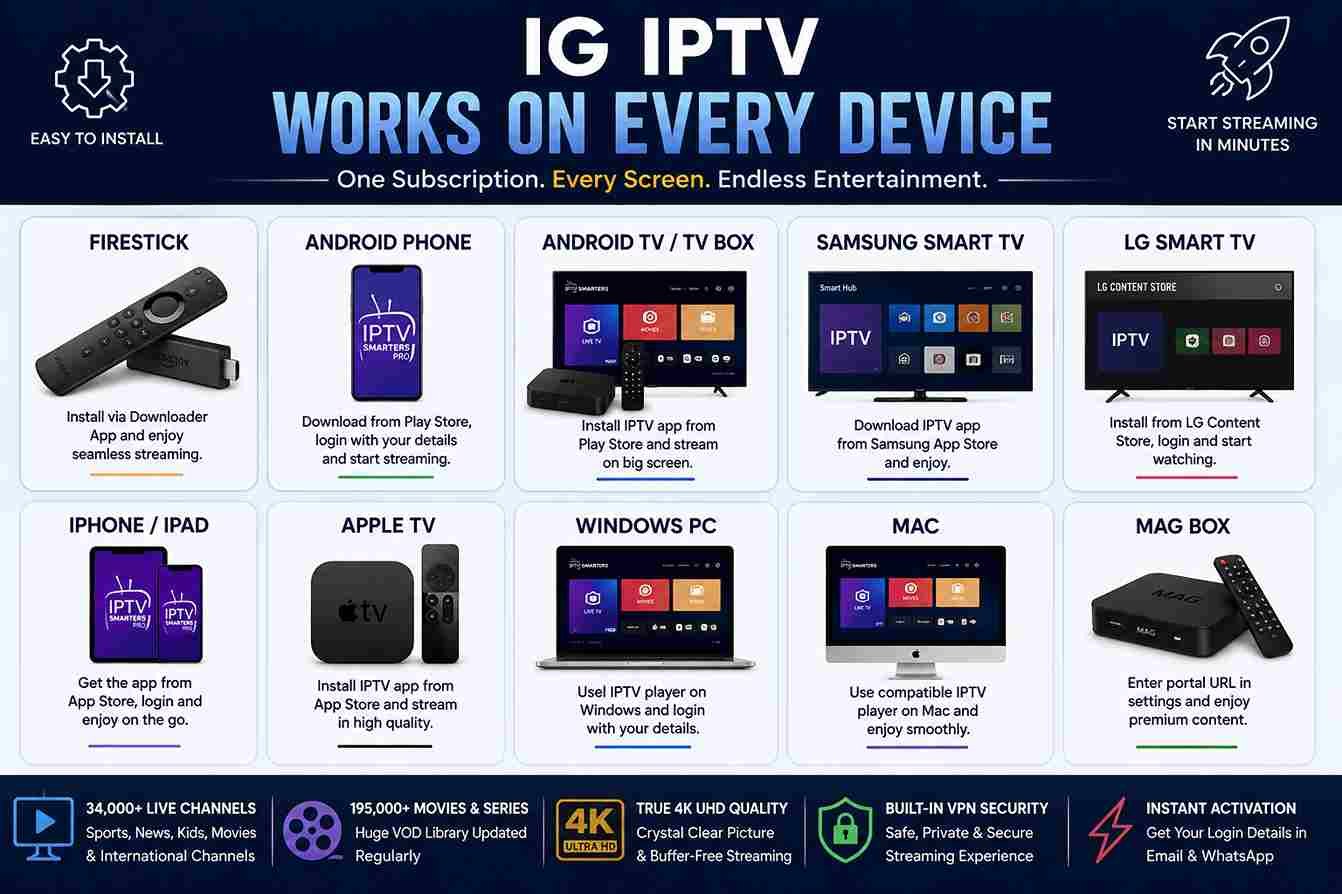
How to Install IG IPTV on Firestick
Firestick is one of the most popular devices for IPTV streaming because it is fast, affordable, and easy to use. for more details visit.
Step 1 – Install Downloader
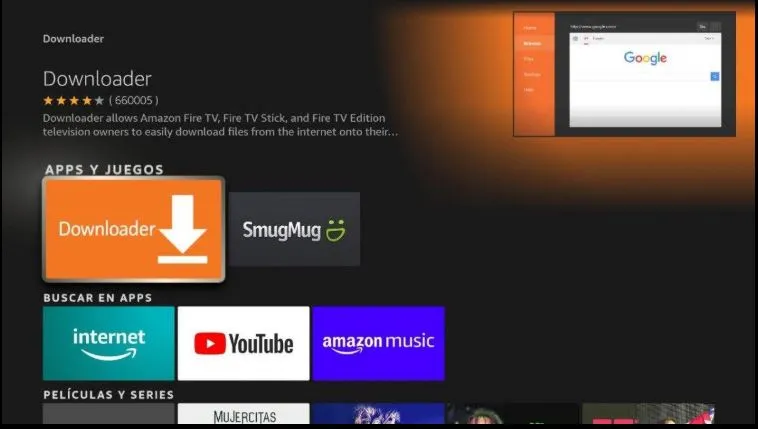
Open the Amazon App Store and search for Downloader. Download and install the application.
Step 2 – Enable Unknown Apps
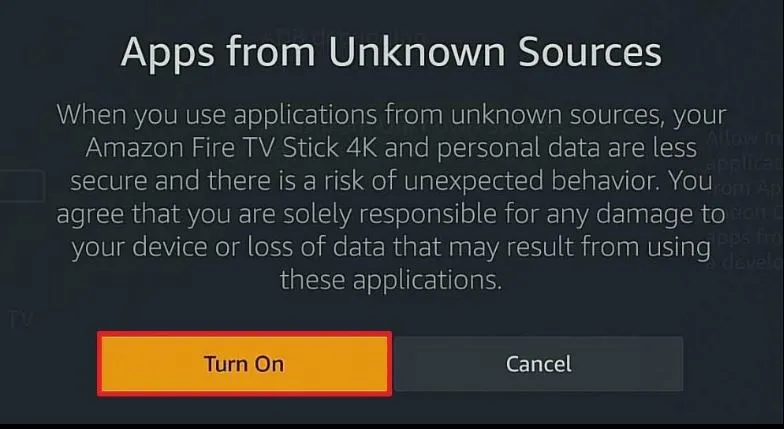
Go to:
Settings → My Fire TV → Developer Options
Enable:
- Install Unknown Apps
- Downloader Permission
Step 3– Login
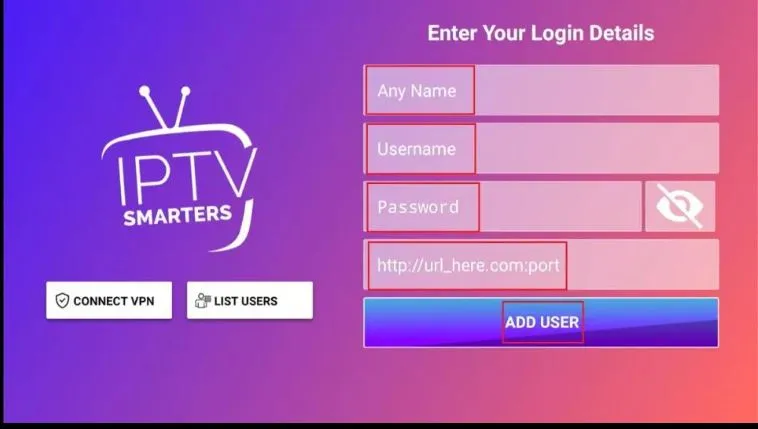
Open IPTV Smarters Pro.
Select:
Login with Xtream Codes API
Enter:
- Username
- Password
- Server URL
All these details are provided after activation.
Step 4 – Start Streaming
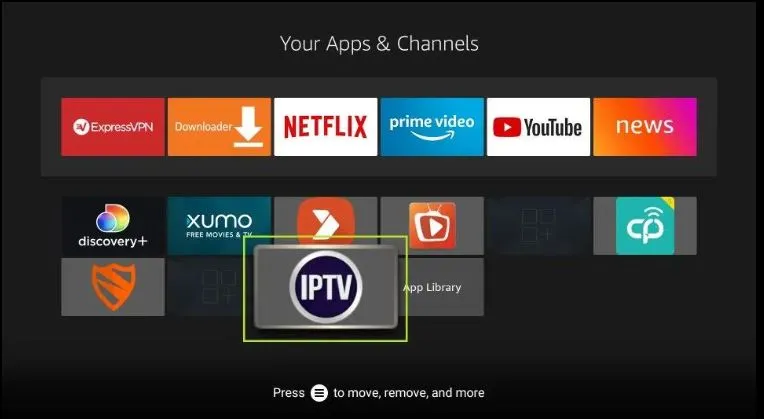
- After logging in successfully, your live TV channels, movies, and TV series will load automatically. You can now start exploring the content and enjoy a smooth streaming experience on your device.
How to Install IG IPTV on Android Phone
Android devices support IPTV applications directly from Google Play.
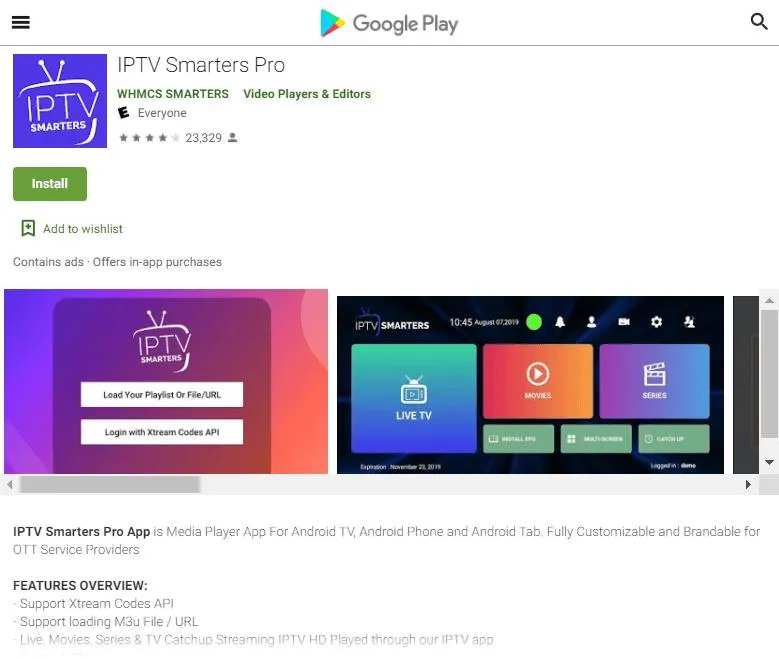
Step 1
Open Google Play Store.
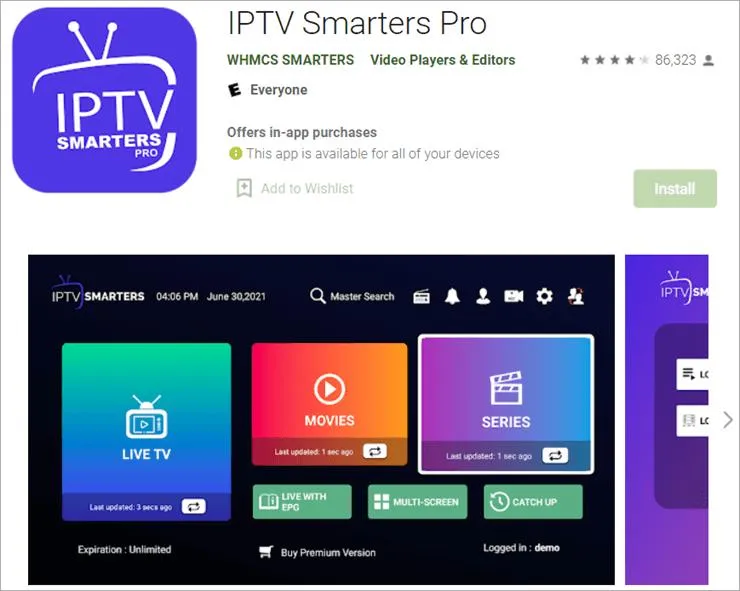
Step 2
Install the application.
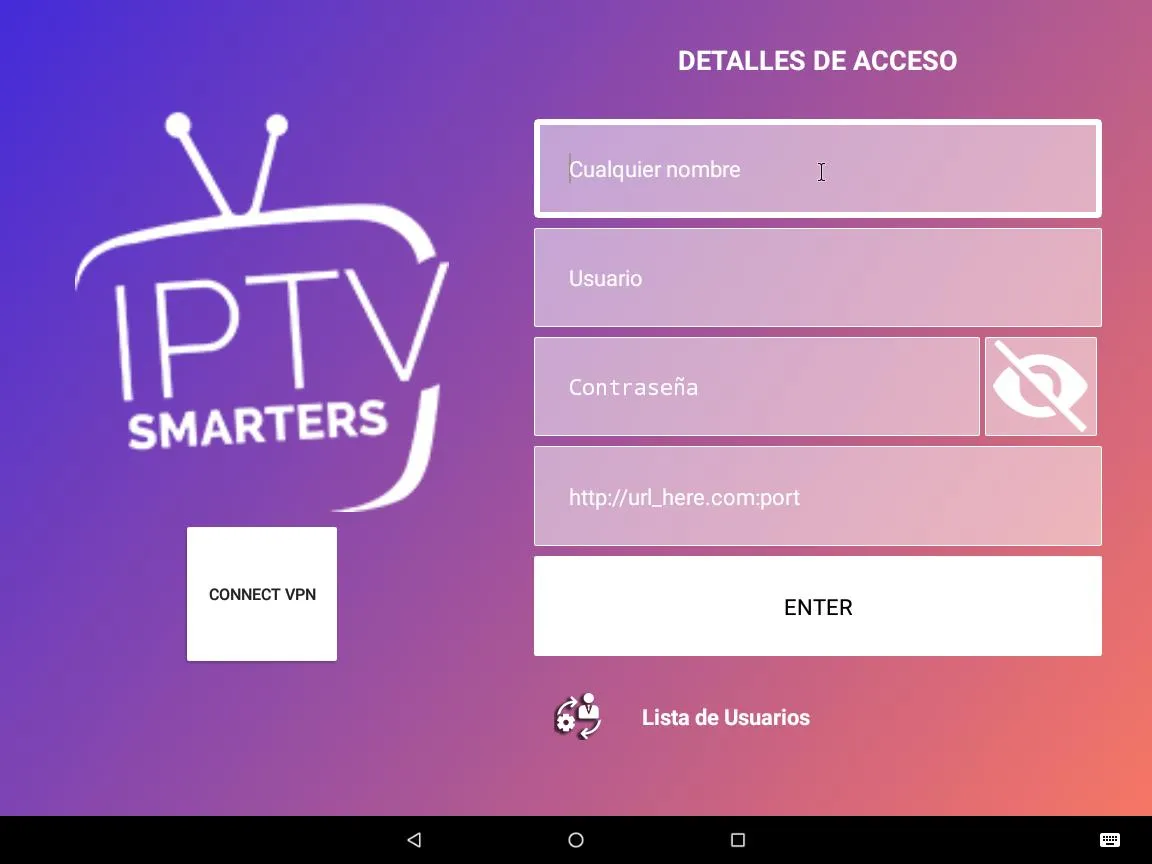
Step 3
Select Login with Xtream Codes API.
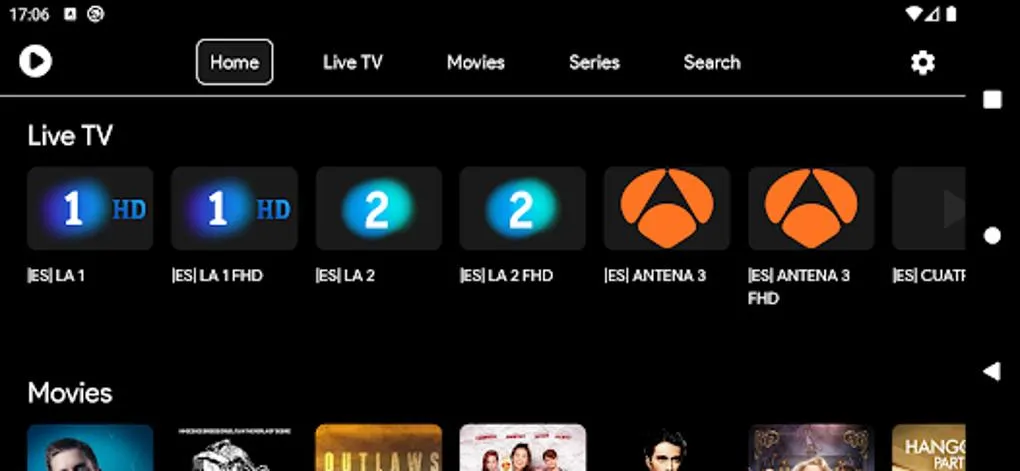
Step 4
Wait for your content to load and start watching.
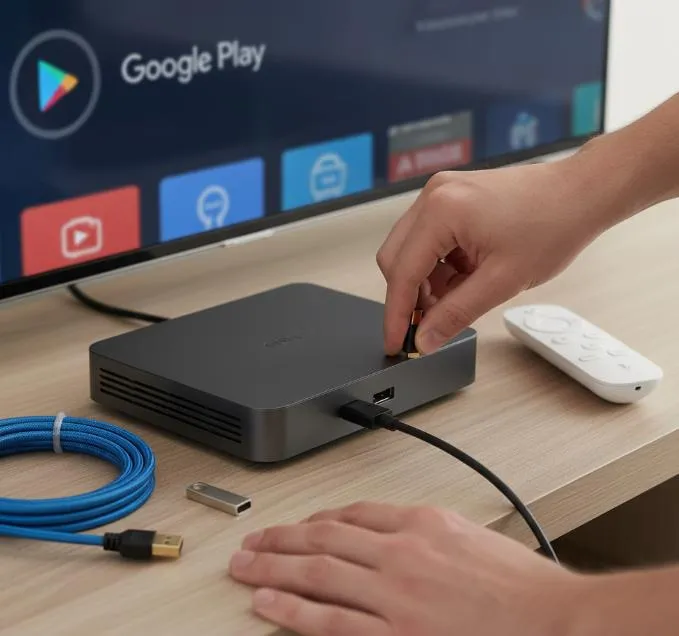
How to Install IG IPTV on Android TV Box
Android TV boxes work almost the same as Android phones.
- Open Google Play Store.
- Install IPTV Smarters Pro.
- Open the app.
- Login using Xtream Codes.
- Enjoy live TV, sports, movies, and series.
How to Install IG IPTV on Samsung Smart TV
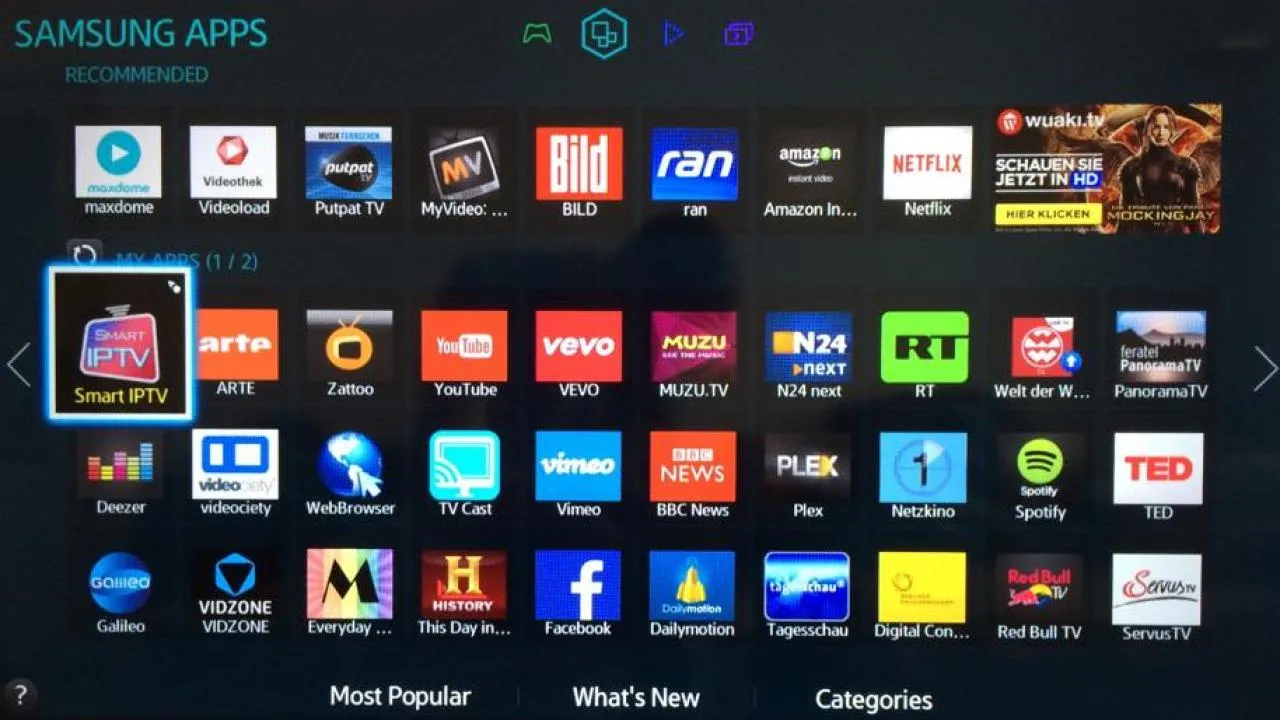
Samsung Smart TVs support several IPTV applications.
Step 1
Open the Samsung App Store.
Step 2
Install a compatible IPTV player.
Step 3
Launch the application.
Step 4
Login using your Xtream Codes.
Step 5
Allow the content to load completely.
You’re ready to stream.
How to Install IG IPTV on LG Smart TV
Step 1
Open LG Content Store.
Step 2
Install your preferred IPTV application.
Step 3
Launch the app.
Step 4
Enter your IPTV login details.
Step 5
Wait for channels to load.
Enjoy uninterrupted streaming.
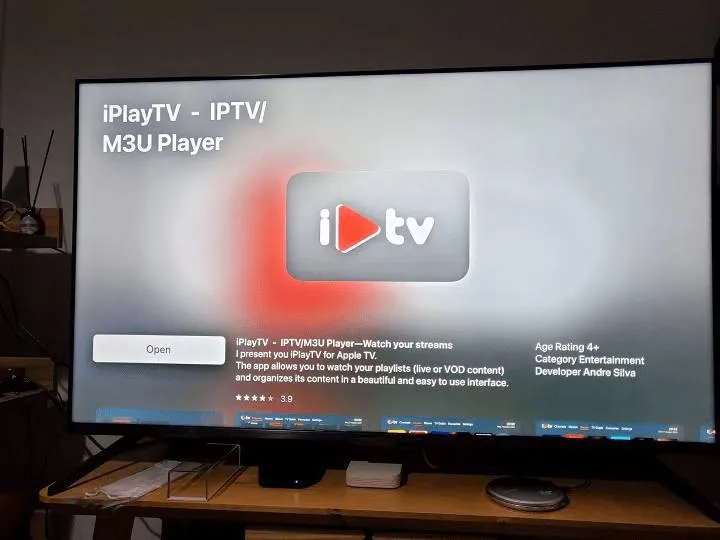
How to Install IG IPTV on Apple TV
- Open the App Store.
- Install a supported IPTV player.
- Launch the application.
- Enter your Xtream Codes credentials.
- Begin streaming instantly.
Common Troubleshooting
Channels Not Loading
Double-check your Username, Password, and Server URL.
Login Failed
Verify that your subscription is active and that all login details have been entered correctly.
Buffering Issues
Restart your router. Use a stable internet connection. Close unnecessary background apps.
App Crashes
Update the IPTV application to the latest version and restart your device.
FAQs – IG IPTV Installation Guide
Most subscriptions are activated within a few minutes after payment.
The IG IPTV Player is recommended,and easy to install. You'll receive setup guidance after purchasing your subscription.
Your credentials are sent via email or WhatsApp shortly after your order is activated.
If you experience any issues during installation, our support team is here to assist you. Contact us through WhatsApp or email, and we'll guide you through the setup process step by step.